
Before you start
Have these ready. Getting them right now saves you edits (and re-checks by Google) later.
- A Google account you’ll keep. Ideally one on your business email, not a staff member’s personal Gmail. Whoever creates the profile becomes its primary owner.
- Your real-world business name, exactly as it appears on your sign, vehicle and registration. No extra keywords or suburbs.
- Your address, or the areas you serve. More on this below.
- A phone number and website the business controls.
- Your opening hours and the one category that best describes what you do, like “Electrician” or “Cafe”.
Can your business have a profile?
Google’s rule is that a business must have a physical location customers can visit, or travel to customers where they are, and deal with customers in person during its hours. That means:
- Shops, offices, clinics and trades are all fine.
- Online-only businesses aren’t eligible.
- Virtual offices, PO boxes and mailbox services can’t be used as your address. A co-working space only counts if you have permanent signage there and staff on site during your hours.
Full details are in Google’s guidelines for representing your business.
Check whether you’re already on Google
Many businesses already have a listing, created by Google or a customer. Search your business name and suburb in Google Maps first.
- If it’s there and says “Claim this business”: click it, then Manage now, and follow the steps. In the Maps app it’s under the About tab.
- If someone else already manages it (an ex-employee, an old agency, the previous owner), you’ll be asked to request access. See owners, managers and getting access back.
- If it’s not there: create a new profile, below.
Don’t create a second profile for a business that already has one. Duplicates are a common reason for suspensions.
Create your profile, step by step
- Go to business.google.com/add and sign in with the account that should own the profile.
- Choose Add your business to Google and type your business name.
- Pick your primary category. Choose what your business is (“Plumber”), not what it has. You can add more categories later. See choosing categories.
- Say whether customers visit you. If yes, enter your address. If you travel to customers, choose the service-area option instead.
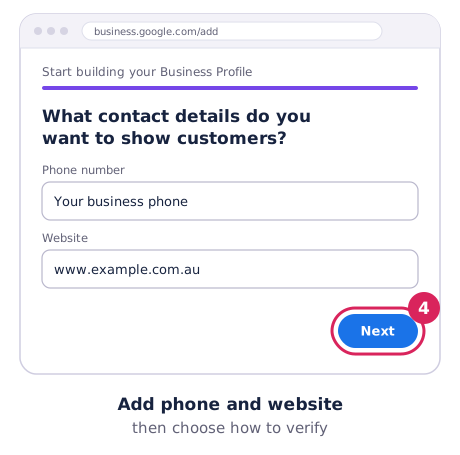
- Add your phone number and website.
- Choose how to verify. Google decides which options you’re offered. See how to verify your Google Business Profile.
- Add your hours, services, description and photos while you wait.
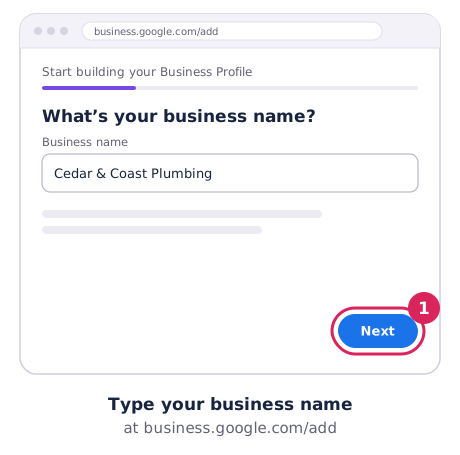
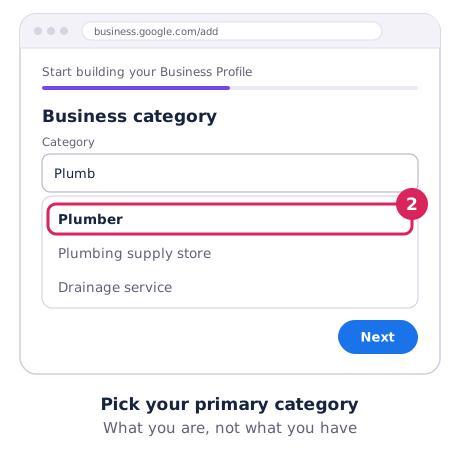
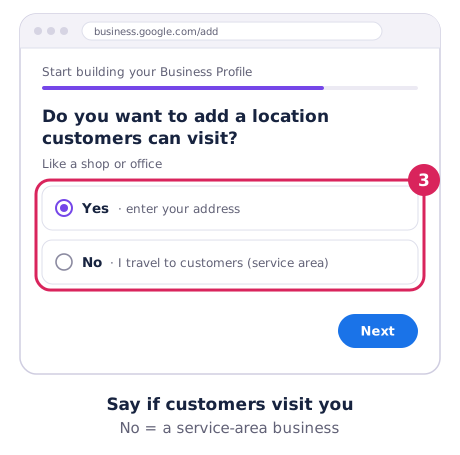
Google’s own version of these steps is in Add or claim your Business Profile.
Storefront or service-area business?
This choice matters, and getting it wrong is a common cause of suspensions.
- Storefront: customers come to you, at a staffed location with signage. Show your address.
- Service-area business: you go to your customers (most trades, cleaners, mobile services). Hide your address and list the areas you serve instead.
- Both: if customers visit you and you travel to them, you can show your address and add service areas too.
Google’s service-area rules: up to 20 service areas, set by suburb, city or postcode (not by radius), and the whole area shouldn’t stretch more than about 2 hours’ drive from where you’re based. Hiding your address doesn’t change where Google thinks you are for ranking, so you’ll usually rank best close to your base. Here’s why.
While you wait for verification
Google reviews verification in up to 5 business days. While it’s pending, don’t change your business name, address or category. Google says a change can stop your verification code from working.
You can safely prepare everything else: a plain-English description of what you do and where, your list of services, and real photos of your work, team, vehicle or shopfront.
The first things to fill in once you’re verified
- Services, one for each thing customers can book.
- Secondary categories for other things you really do.
- A description of up to 750 characters: what you do, who for and where. No prices, links or keyword lists.
- Photos: logo, cover photo and at least a handful of real work photos.
- Your review link. Get it from our free review link and QR code tool and start asking every customer.
Our Google Business Profile checklist covers the rest. When it’s done, run a free Google Maps rank check to see where you show up across your area.