

Owners and managers: who can do what
- Primary owner: one per profile. Controls everything, including who else has access.
- Owners: you can have several. Owners can add and remove people and remove the profile.
- Managers: can do almost everything else: edit details, reply to reviews, post updates, add photos and see performance. They can’t add or remove people or remove the profile.
Google has folded the old “site manager” role into Manager, so there are now just these three.
How to add someone
- Sign in and open your Business Profile on Google Search or Maps.
- Choose More → Business Profile settings → People and access.
- Choose Add, enter their email address and pick Owner or Manager.
- Choose Invite. They accept from the email Google sends them.
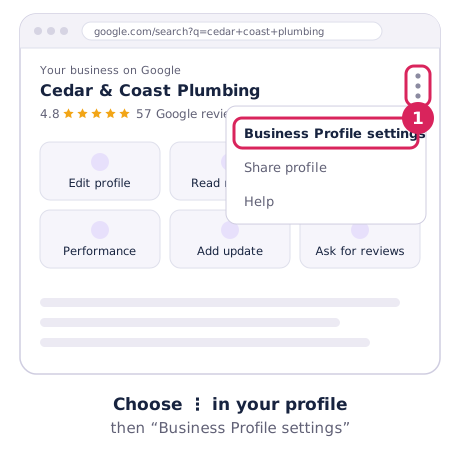
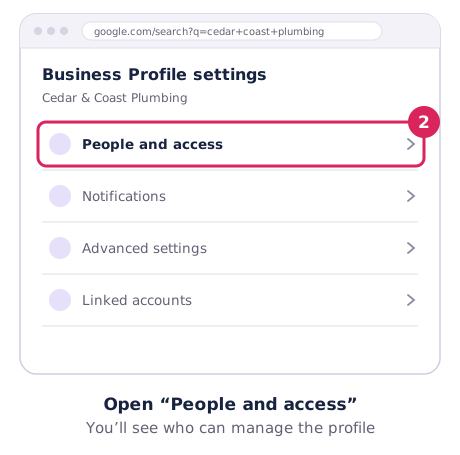
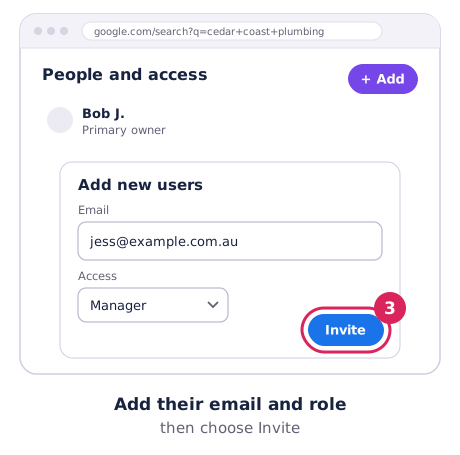
Google’s steps are in Add and manage users.
How to remove someone
Go to the same People and access screen, select the person and choose Remove person. Anything they posted or replied stays on your profile.
Do this the day a staff member leaves or you stop working with an agency. Old logins are one of the most common ways businesses lose control of their profile.
Transferring primary ownership
- The new owner must already be an owner or manager on the profile.
- The current primary owner opens People and access, selects that person, chooses Edit next to Access, then Primary owner → Save.
The 7-day rule: new owners and managers must wait 7 days before they can make anyone primary owner, remove users or delete the profile. Plan handovers (like selling a business) with that in mind.
Locked out? How to request access
If someone else controls your profile and you can’t reach them:
- Go to business.google.com/add, find your business and choose Request access.
- Fill in the form. The current owner gets an email and has 3 days to respond.
- If they don’t respond, you may be able to claim the profile yourself: open Google’s confirmation email, choose View request, then Verify.
- If they deny the request, Google emails you. You can still suggest edits to the listing and appeal.
Service-area businesses (with a hidden address) work a little differently: contact Google Business Profile support and choose Transfer ownership of listing. Details are in Request ownership of a Business Profile.
Giving an agency access safely
- Keep the primary owner in the business. Use an email address the business owns, not a staff member’s personal account or the agency’s.
- Make agencies Managers, not Owners. Managers can do the work. Owners can lock you out.
- Add a second owner you trust, like a business partner, so you’re not stuck if one account has a problem.
- Review the list every few months and remove anyone who no longer needs access.