
The verification methods
Google chooses which methods you’re offered, based on your business and category. You may see one or more of these:
- Video recording: a short, unedited video of your business. This is now the most common option, and Google recommends it.
- Phone or text: Google sends a code to your business number.
- Email: a code sent to your business email.
- Live video call with a Google support person.
- Postcard: a code posted to your address. It takes about 2 weeks to arrive and expires after 30 days.
- Instant verification: for some businesses that have already verified their website in Google Search Console.
How to pass video verification
Google’s video rules are strict. The video must be:
- At least 30 seconds, recorded live on your phone in one go. No edits, no breaks and no pre-recorded videos.
- Showing where you are: street signs, the building number or nearby shops.
- Showing your business: permanent signage with your business name, or branded equipment.
- Showing you’re in charge: for a shop, the register, kitchen, stockroom or point-of-sale system. For a service-area business, your tools, branded vehicle, or permits and invoices with your business name.
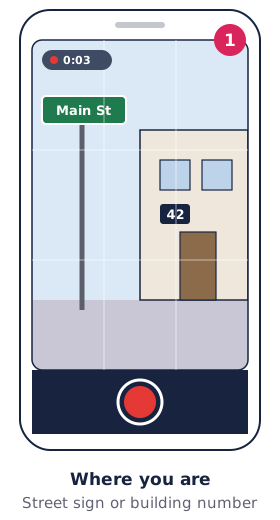
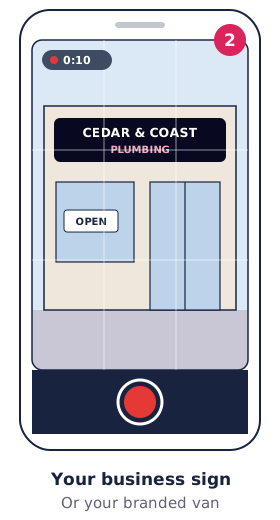
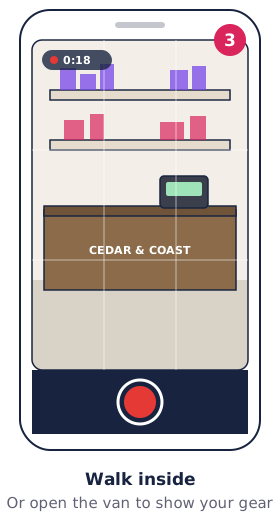
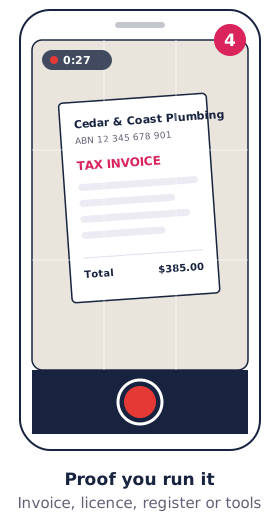
A simple plan for the video: start at the street sign, walk to your signage, go inside (or open your van), then show something only the owner could access, like the register or your work tools. Talk through it if it helps. In the app, it’s Business video → Start recording → Upload video.
How long it takes
Google says verification reviews take up to 5 business days. Postcards take around 2 weeks to arrive.
While you wait, don’t change your business name, address or category. Google warns that doing so can stop your code working. You can prepare photos, services and your description in the meantime.
Why verification fails
The reasons Google gives most often:
- The business name isn’t visible on a permanent sign or fixture.
- The video doesn’t show enough of the surrounding area to confirm the location.
- There’s no proof you manage the business, like access to the register or tools.
- The business name on the profile doesn’t match your signage.
- The address is a virtual office, PO box or mailbox service, which Google doesn’t accept.
If your verification fails
You’ll know because the Get verified button comes back, or you get a Review issues notice.
- Open Review issues and read what Google says.
- Fix the cause. For example, make sure your signage is in shot, or correct the business name to match your sign.
- Try again, with a different method if one is offered.
- If no method works, contact Google Business Profile support.
Google’s full guide is Verify your business on Google.
Tips for service-area businesses
No shopfront? Google still needs to see that your business is real.
- Film your branded vehicle with its signage, then your tools or equipment.
- Have a business document ready to show on camera, like an invoice or licence with your business name.
- Start the video somewhere that shows the suburb, like a street sign near your base.
After you’re verified
Fill in your services, description and photos, then start asking for reviews. The Google Business Profile checklist has the full list. Once it’s done, run a free rank check to see where you appear across your area.