

Why duplicates are a problem
- Google’s rule is one profile per business location. Duplicates break its guidelines.
- If Google treats a profile as a duplicate, it won’t show it on Search or Maps.
- Your reviews end up split between two listings.
Find your duplicates
- Search Google Maps for your business name, your old name and your phone number.
- Search your address to see every listing there.
- If you manage several profiles, check your list in Business Profile Manager for two at the same location.
A duplicate you own
Keep the listing with the most reviews and the correct details. Remove the other one: More → Business Profile settings → Remove Business Profile → Remove profile content and managers. You can tick Mark your business as permanently closed at the same step. Google says removing a duplicate doesn’t affect your verified listing.
A duplicate you don’t own
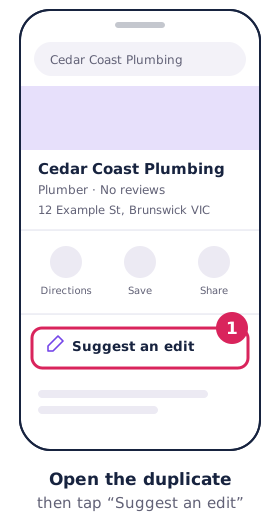
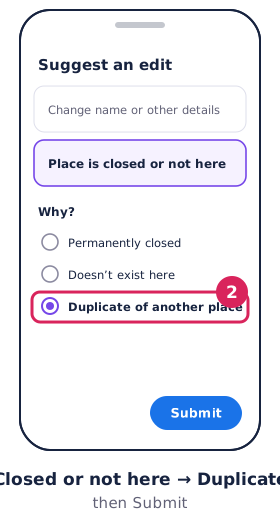
In Google Maps, open the duplicate, choose Suggest an edit → Place is closed or not here → Duplicate of another place, and submit. If it has reviews you want to keep, you can ask Google to merge the two instead of removing it.
What happens to reviews
Google says that when two profiles are merged, their reviews are combined, but your replies to those reviews may be lost. Removing a duplicate without merging doesn’t move its reviews. For listings that have moved, don’t create a new profile. Update the address on the existing one instead (see moving, closing and removing).
Wrongly flagged as a duplicate? Contact Google Business Profile support to appeal.