
First, don’t panic (or make changes)
Before you do anything else:
- Don’t create a new profile. Google asks you not to while an appeal is open, and starting again usually means losing every review you’ve earned.
- Don’t keep editing your profile. A burst of edits to your name, address or category is one of the most common triggers. Leave it alone until you know what’s wrong.
- Don’t guess at the evidence. Get your documents ready first (see below). Google gives you a short window to upload them.
Suspended, disabled or just unverified?
Google’s notices aren’t always clear, and Google itself doesn’t use the words “soft” or “hard” suspension. Here’s how people in the industry tell them apart:
- Suspended: your business has disappeared from Google Search and Maps. Customers can’t find it at all.
- Disabled: your listing still shows on Maps, usually with its reviews, but you can’t manage or edit it.
- Unverified: the listing is public, but you can’t reply to reviews or add photos and updates until you verify it again.
Google tells you by email and with a notice in your profile. The notice names the policy it thinks you broke, but not what to fix. If every profile you manage went down at once, it may be your Google account that’s restricted rather than the business. That has its own appeal at myaccount.google.com/restrictions.
Not sure which you’re dealing with? Run a free Google Maps rank check. If your business doesn’t appear in any of the 25 spots, customers can’t see it either.
Why Google suspends profiles
Most suspensions come back to Google’s guidelines for Business Profiles. The usual causes:
- Extra words in the business name. “Smith Plumbing – Emergency Plumber Perth” instead of the name on your sign and registration.
- An address you can’t use. Virtual offices, PO boxes and mailbox services aren’t allowed. Co-working spaces only count with permanent signage and staff there during your hours.
- A service-area business showing its address. If you go to your customers, hide your address and set a service area instead.
- More than one profile for the same location, even across different Google accounts.
- Lots of quick edits to your name, address, category or phone number.
- A phone number or website you don’t control, such as call-tracking redirects, a call centre, or a link that redirects somewhere else.
- A problem with an owner or manager’s Google account. If someone with access has been restricted, your profile can go down with them.
- A high-spam industry. Locksmiths, plumbers, garage doors and similar trades get checked far more closely.
Google has become much stricter since 2025. It now uses AI to spot suspicious edits, and industry trackers reported waves of suspensions in 2025 and again in 2026. Some genuine businesses get caught too.
Fix the cause before you appeal
Read the policy named in Google’s notice, then check your profile against the list above. Fix anything that doesn’t match your real business, one change at a time. If Google has locked editing, write down what you would change and explain it in your appeal instead.
Your business name, address and phone number should match exactly across your profile, your website, your signage and your registration documents.
Get your evidence ready
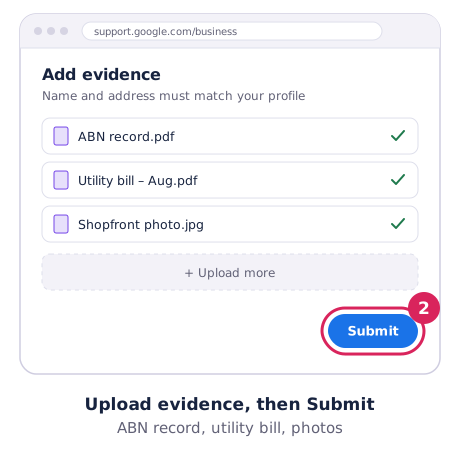
Google’s appeal form asks for documents that prove your business is real and operating at that address. The business name and address must match your profile. Have these ready as PDFs or photos:
- Official business registration. For most Australian businesses that’s your ABN record or business name registration.
- A business licence or trade registration, if your industry needs one.
- A tax document for the business.
- A recent utility bill (electricity, phone, water or internet) in the business name at that address. If you work from home as a service-area business, add something like your business insurance certificate.
- Photos of your signage, shopfront or branded vehicle, inside and out. Specialists also suggest a short video that starts outside and walks in.
Once you open Google’s evidence form, you only have 60 minutes to upload everything, so gather it all first.
How to appeal, step by step
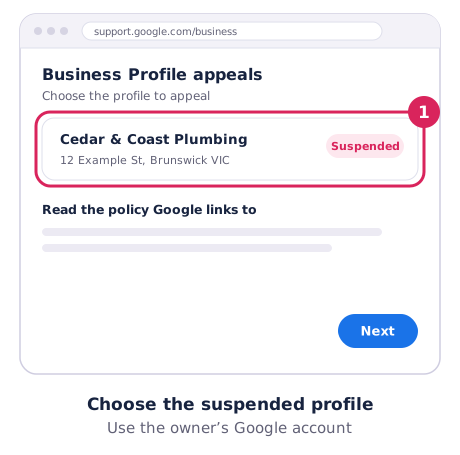
- Sign in to the Google account that owns the profile and open Google’s Business Profile appeals tool. The suspension email also has an Appeal button.
- Choose the suspended profile and read the policy Google links to.
- Submit the appeal and upload your evidence.
- Track the status in the same tool: Submitted, Approved or Not approved.
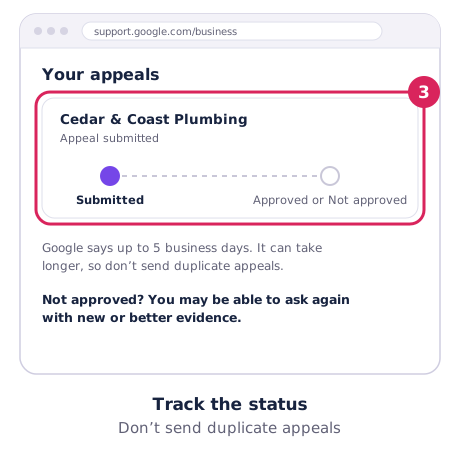
How long it takes: Google says up to 5 business days. In busy periods specialists have seen waits of several weeks, so be patient and don’t submit duplicate appeals.
If it’s not approved: Google may let you ask for another review with new or better evidence. Work out what was missing before you try again.
What happens after reinstatement
- Rankings: if the suspension was short, your Google Maps rankings usually come back to where they were. Check your ranking once you’re back so you know.
- Reviews: they normally return, but Google says some can be removed after reinstatement. If reviews are missing, contact Google Business Profile support.
- Take it slowly: after you’re back, make changes gradually. A flurry of edits straight away can trigger another review.
How to avoid another suspension
- Use your real-world business name, exactly as it appears on your sign and registration.
- Show an address only if customers visit you there, with signage and staff. Otherwise hide it and set a service area.
- Keep one profile per location.
- Use a phone number and website the business controls, with no redirects.
- Make changes to your name, address, category or phone slowly, one at a time.
- Make the primary owner a business email account, and remove managers you don’t recognise.
- Keep your registration documents, a recent utility bill and signage photos in one folder, ready to go.
Our Google Business Profile checklist covers the rest of a healthy profile.